Navigate through your architecture by clicking nodes to see their inputs and outputs in a dedicated view
I'm excited to share a feature that makes exploring complex diagrams significantly easier. You can now click any node in the visualizer to open Focus Mode.
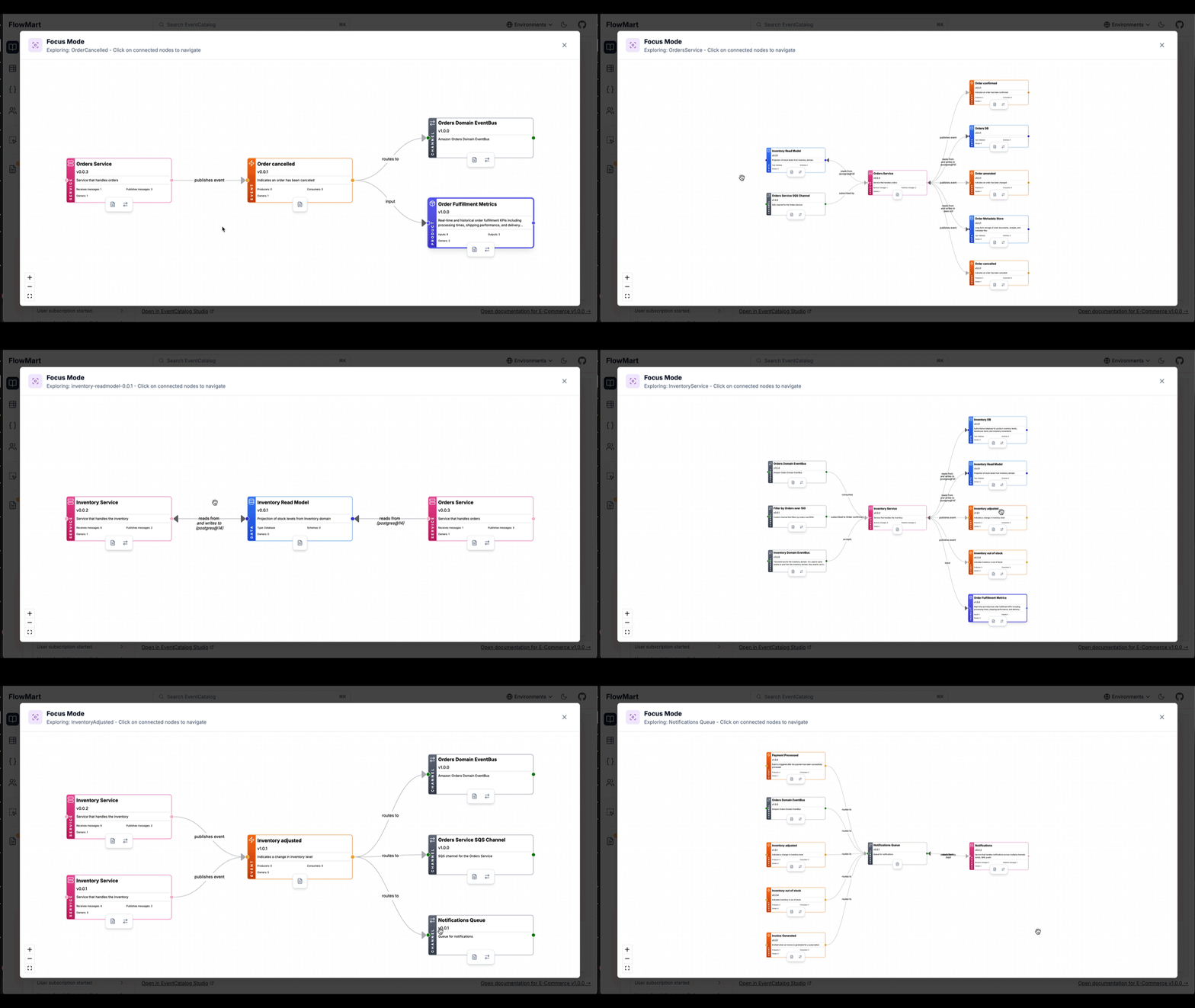
Focus Mode shows the clicked node in the center with all incoming connections on the left and outgoing connections on the right helping you understand how your architecture interacts.
Problem with large architecture diagrams
Large architecture diagrams get messy fast. You have 20 services, 50 events, and edges crossing everywhere. Finding what connects to a specific node means visually tracing lines across the entire graph.
Focus Mode isolates what you care about. Click a node. See everything that feeds into it on the left. See everything it sends to on the right. No visual noise from unrelated parts of your architecture.
When you'd use it
You're reviewing a service diagram with 30 nodes. You need to understand what the OrderService receives and what it produces.
Click the OrderService node. Focus Mode opens. The left side shows three events it consumes: PaymentProcessed, InventoryReserved, CustomerVerified. The right side shows two events it produces: OrderCreated, OrderConfirmed.
You want to check what consumes OrderCreated. Click that node on the right. The view slides smoothly. OrderCreated moves to center. The left now shows OrderService as the producer. The right shows consumers: ShippingService, NotificationService, AnalyticsService.
This works across your entire graph. Click any connected node to navigate through your architecture's relationships.
How it works
Step 1: Click any node in the visualizer
When viewing a service, domain, or any page with a visualizer, click a node. Focus Mode opens in a modal.
Step 2: Review connections
The clicked node appears in the center. Incoming connections (sources) display on the left. Outgoing connections (targets) display on the right.
If a node has no inputs or outputs, you see a placeholder: "No inputs found for OrderCreated in this diagram" or "No outputs found for OrderService in this diagram."
Step 3: Navigate between nodes
Click any connected node to switch focus. The view animates smoothly as nodes slide into their new positions. The center node becomes the new focus point.
Step 4: Access node details
Each node shows action buttons for quick access. View documentation or switch to that resource's page directly from Focus Mode.
Step 5: Close when done
Click the X button or press Escape to close Focus Mode and return to the full visualizer.
Getting started
Update to EventCatalog v3.12.0 or later:
npm install @eventcatalog/core@latest
Open any visualizer page and click a node. Focus Mode opens automatically. That's it.
Summary
Focus Mode provides a cleaner way to explore node relationships in complex architecture diagrams. Click nodes to see their connections, navigate between nodes with smooth animations, and access node actions without leaving the focused view.
For more details on visualizer features, see the visualizer documentation.
Have questions? Join us on Discord.
Found a bug or want to contribute? Check out our GitHub repository.