Creating agents
eventcatalog@3.41.0Agents in EventCatalog are a great way to document AI-powered capabilities in your architecture.
You can also add tools and model metadata to your agents.
What do agents look like in EventCatalog?
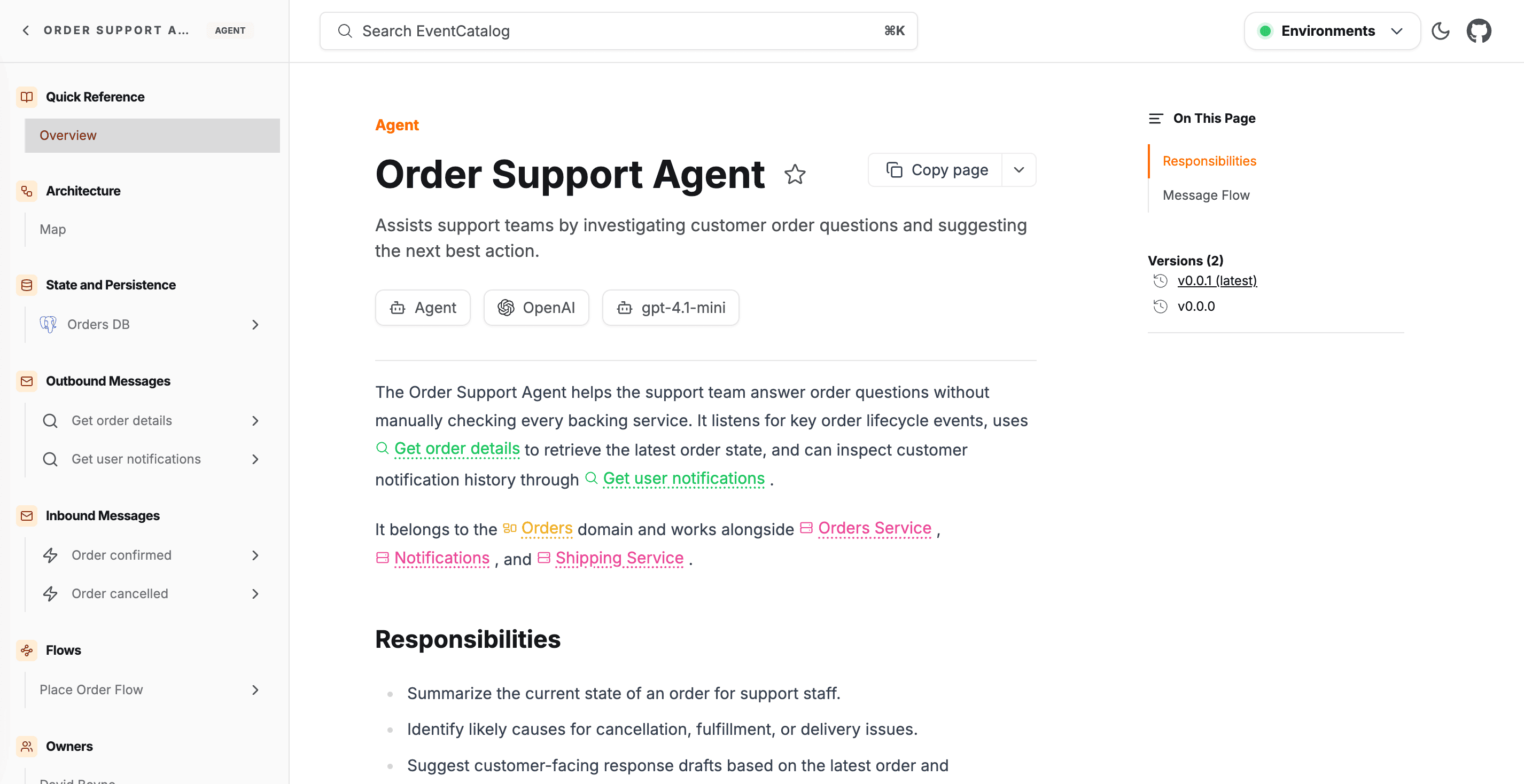
Adding a new agent
To add a new agent, create a folder inside an agents directory with an index.mdx file.
/agents/{Agent Name}/index.mdx- (example
/agents/FraudReviewAgent/index.mdx)
- (example
You can also place agents inside a domain or subdomain:
/domains/{Domain Name}/agents/{Agent Name}/index.mdx- (example
/domains/Payment/agents/FraudReviewAgent/index.mdx)
- (example
/domains/{Domain Name}/subdomains/{Subdomain Name}/agents/{Agent Name}/index.mdx- (example
/domains/E-Commerce/subdomains/Payment/agents/FraudReviewAgent/index.mdx)
- (example
Here is an example of what an agent markdown file may look like.
---
# id of your agent, used for slugs and references in EventCatalog.
id: FraudReviewAgent

# Display name of the Agent, rendered in EventCatalog
name: Fraud Review Agent

# Version of the Agent
version: 0.0.1

# Short summary of your Agent
summary: |
  Reviews risky payments, explains fraud signals, and recommends whether payment processing should continue.

# Optional owners, references teams or users
owners:
    - dboyne

# Optional model metadata describing the LLM this agent runs on
model:
  provider: OpenAI
  name: gpt-4.1
  version: "2025-04-14"

# Optional external tools the agent can call
tools:
  - name: Risk profile lookup
    type: mcp
    icon: /icons/tools/datadog.svg
    url: https://mcp.example.com/fraud/risk-profile
    description: Retrieves transaction anomaly, device fingerprint, and fraud model signals.

# Optional messages this agent receives and it's version
receives:
  - id: PaymentInitiated
    version: 0.0.1

# Optional messages this agent sends and it's version
sends:
  - id: FraudReviewCompleted
    version: 0.0.1

# Optional data stores this agent reads from
readsFrom:
  - id: fraud-analytics-db
    version: 0.0.1

# Optional badges, rendered to UI by EventCatalog
badges:
    - content: AI Agent
      backgroundColor: purple
      textColor: purple
---

## Overview

The Fraud Review Agent reviews risky payment attempts before they continue through the payment gateway.

<NodeGraph />

## Tools

<AgentTools />
Adding content
With agents you can write any Markdown you want and it will render on your page. Every agent gets its own page.
Within your markdown content you can use components to add interactive components to your page.
Adding tools to your agent
You can document the external tools (MCP servers, APIs, databases) an agent can call.
You can read more about adding tools to your agent here.
Attaching an agent to a domain
To associate an agent with a domain, add its id to the agents array in the domain's frontmatter:
---
id: Payment
name: Payment Domain
version: 0.0.1
agents:
  - id: FraudReviewAgent
    version: 0.0.1
services:
  - id: PaymentService
    version: 0.0.1
---
EventCatalog will show the agent in the domain sidebar and include it in the domain visualiser.
Custom icon
Set styles.icon in your frontmatter to display a custom icon on the agent. The icon appears in the visualiser node, sidebar navigation, page header, and search results.
---
id: FraudReviewAgent
name: Fraud Review Agent
version: 0.0.1
styles:
  icon: /icons/agents/fraud-review.svg
---
The value can be a path to a file in your catalog's public/ folder (e.g. /icons/logo.svg) or an absolute URL. Simple Icons CDN is a useful source for brand logos.