Create a flow
eventcatalog@2.5.0Flows document business processes, user journeys, and architecture workflows across your catalog.
Users can step through flows step by step, and your flows can reference any resource in EventCatalog or define custom nodes.
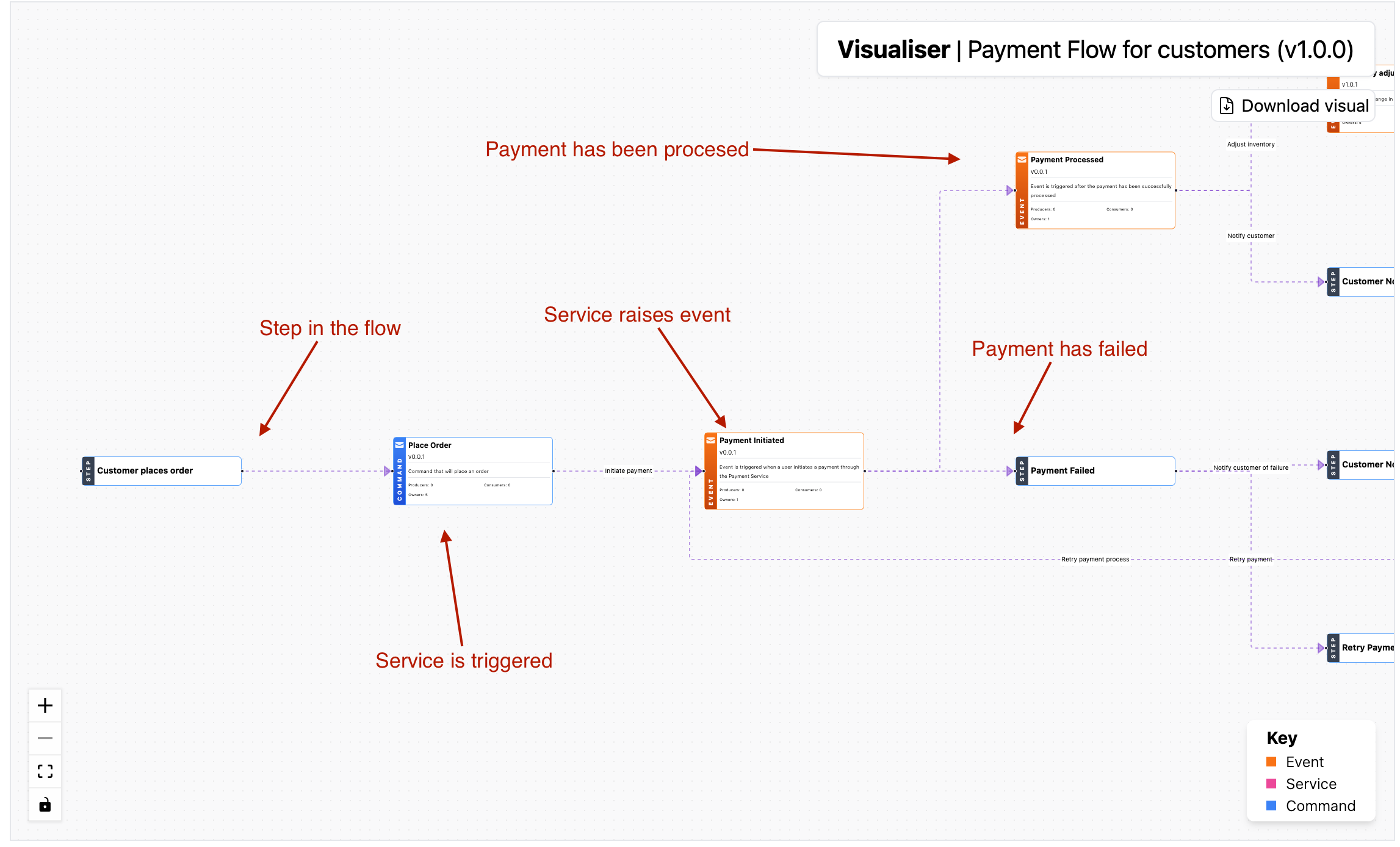
Creating a flow
Automatic Creation
Copy this prompt and paste it into your coding agent. Your agent can help you identify the steps, connect them, choose where the flow should live, and create the first version of the flow documentation.
You can install the EventCatalog Skills (https://github.com/event-catalog/skills/tree/main/skills/flow-wizard) and use the flow-wizard skill to help you document your business workflow. Use natural language and your LLM will do the rest.
Manual Creation
Flows live in a flows folder. EventCatalog discovers any index.mdx file inside a flows directory, regardless of where that directory lives in your catalog.
You can place flows:
At the root of your catalog:
Inside a domain:
Inside a service:
The contents are split into two sections, frontmatter and the markdown content.
Create the flow file
Create an index.mdx file for the flow.
Here is an example of what a flow file may look like.
---
id: "CancelSubscription"
name: "User Cancels Subscription"
version: "0.0.1"
summary: "Flow for when a user has cancelled a subscription"
steps:
  - id: "cancel_subscription_initiated"
    title: "Cancels Subscription"
    summary: "User cancels their subscription"
    # define the actor for, in this case it's a user.
    actor:
      name: "User"
    # What happens next? Define the next step
    next_step:
      id: "cancel_subscription_request"
      label: "Initiate subscription cancellation"

  - id: "cancel_subscription_request"
    title: "Cancel Subscription"
    # This step is a message, include the message and version
    message:
      id: "CancelSubscription"
      version: "0.0.1"
    next_step:
      id: "subscription_service"
      label: "Proceed to subscription service"

  - id: "stripe_integration"
    title: "Stripe"
    # This is an external system (e.g Stripe)
    externalSystem:
      name: "Stripe"
      summary: "3rd party payment system"
      url: "https://stripe.com/"
    next_step:
      id: "subscription_service"
      label: "Return to subscription service"

  - id: "subscription_service"
    title: "Subscription Service"
    # This node is a service, include that.
    service:
      id: "SubscriptionService"
      version: "0.0.1"
    # Define multiple steps
    next_steps:
      - id: "stripe_integration"
        label: "Cancel subscription via Stripe"
      - id: "subscription_cancelled"
        label: "Successful cancellation"
      - id: "subscription_rejected"
        label: "Failed cancellation"

  - id: "subscription_cancelled"
    title: "Subscription has been Cancelled"
    message:
      id: "UserSubscriptionCancelled"
      version: "0.0.1"
    next_step:
      id: "notification_service"
      label: "Email customer"

  - id: "subscription_rejected"
    title: "Subscription cancellation has been rejected"

  - id: "notification_service"
    title: "Notifications Service"
    service:
      id: "NotificationService"
      version: "0.0.2"

---

This flow documents what happens when a User Cancels Subscription in our system.

<NodeGraph />

<!-- Add any markdown you want, the workflow will also render in its own page /docs/flows/{Flow}/{version} -->
Once this file is added, the flow will automatically appear in EventCatalog.
Add subflows / reuseable flows
You can reference a flow from another flow. This lets you reuse flows in your flow diagrams, useful if you have complex flows that reuse information from another flow.
You can also group related flows by placing them in subdirectories inside any flows folder. EventCatalog discovers them regardless of nesting depth.
The flow id in your frontmatter is what EventCatalog uses for routing and references. The directory structure is purely for organization.
To reference a flow from another flow, use the flow node type.
steps:
  - id: "step-1"
    title: "Example Step of a Event"
    flow:
      id: "order-flow"
      version: 0.0.1
This will render the order-flow within the described flow.
Right clicking on the order-flow node will let you navigate to the referenced flow.
Expand sub-flows inline
Click any sub-flow node in the visualiser to expand its steps inline inside the parent flow diagram. Click the Collapse button in the expanded node's header to restore the single-node view.

Expanded steps participate in the step-by-step walkthrough, so you can navigate through them using the next/previous controls without leaving the parent flow. Nested sub-flows (a sub-flow that itself references another flow) also expand correctly.
Tips for flow content
It's entirely up to you what you want to add to your flows markdown content but here are a few things you might want to consider.
- Context of the flow. What is it? Why does it exist?
- Examples of how to trigger the flow?
- Any edit/contributing guidelines?