Use slash commands
Slash commands let you add content without remembering Markdown syntax or MDX component names.
Type / in an empty paragraph to open the command menu. The menu shows matching blocks, grouped by purpose, with a visual preview of the selected command.
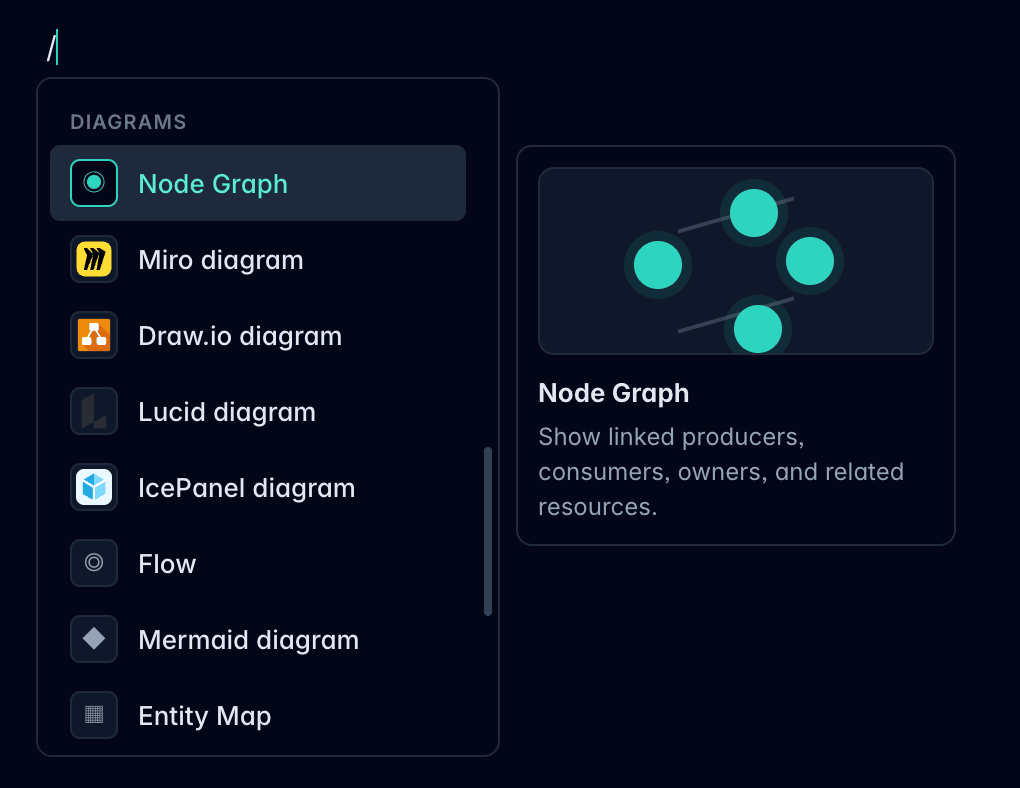
Insert a block
- Click into the resource documentation.
- Start a new empty paragraph.
- Type
/. - Search or scroll to the block you want.
- Press
Enteror click the command.
The editor inserts the matching Markdown or MDX block into the resource.
Add EventCatalog components
Slash commands are useful for adding EventCatalog-specific components without switching to source mode.
You can insert components such as:
- Node Graph
- Miro diagram
- Draw.io diagram
- Lucid diagram
- IcePanel diagram
- Flow
- Mermaid diagram
- Entity Map
- Schema Viewer
- Steps
- Tiles
- Accordion group
- Prompt
- Visibility
- Admonitions such as note, tip, warning, danger, and info
Some commands are available only when they make sense for the current resource. For example, Schema Viewer is available for events, commands, and queries, while Entity Map is available for domains.
Use visual previews
The preview panel shows what the selected command is for before you insert it.
Use this when you are deciding between similar blocks, such as diagram components or callout types.
Edit the inserted block
After inserting a component, you can usually edit it directly in the rich editor.
If the component needs configuration that is not exposed visually yet, switch to source mode and edit the MDX.
When to use source mode instead
Use source mode when you need to:
- Paste an existing MDX component
- Change advanced component attributes
- Edit custom components that the slash menu does not know about
- Review the exact Markdown or MDX that will be saved