Creating data products
eventcatalog@3.8.0Data products document analytical datasets that transform operational (e.g databases, messages, channels) data into insights. Adding a data product helps teams understand data lineage, contracts, and consumption patterns.
What do data products look like?
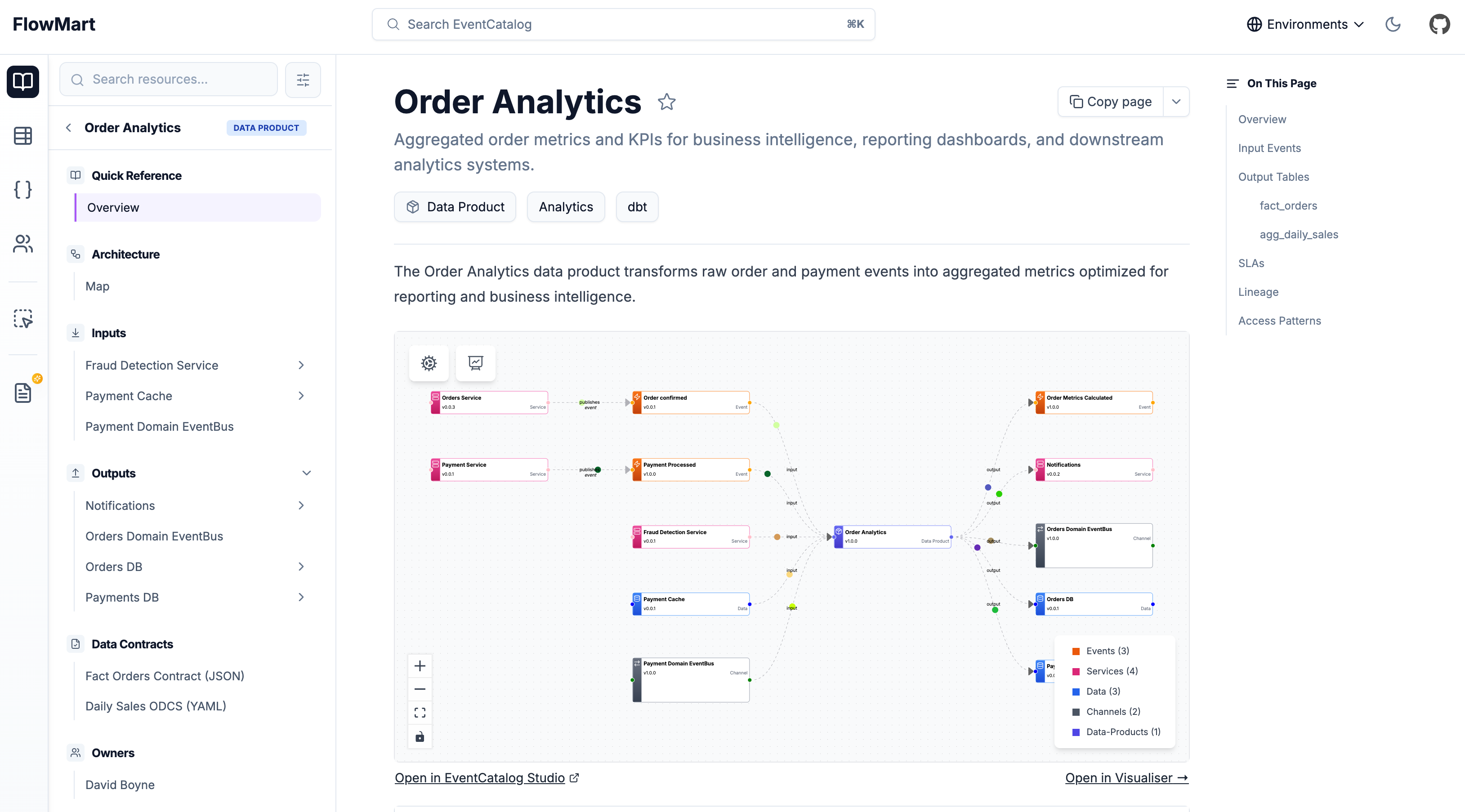
Creating a data product
Create a new folder called data-products and add your data product files to it.
**/data-products/{DataProduct Name}/index.mdx- (example
**/data-products/OrderAnalytics/index.mdx) - (example
**/data-products/PaymentMetrics/index.mdx)
- (example
Data products can be defined in any folder. This lets you group data products by domains, teams, or business areas.
Creating the data product file
Within your data product folder create an index.mdx file.
The index.mdx contents split into two sections: frontmatter and markdown content.
Here is an example data product markdown file. You can read the API docs for the data product frontmatter API.
---
# Unique identifier for your data product
id: order-analytics

# Display name rendered in EventCatalog
name: Order Analytics

# Version of the data product
version: 1.0.0

# Brief summary of what this data product provides
summary: Aggregated order metrics and KPIs for business intelligence

# Optional owners (references teams or users)
owners:
  - dboyne

# Optional badges for categorization
badges:
  - content: Analytics
    backgroundColor: purple
    textColor: purple
  - content: dbt
    backgroundColor: orange
    textColor: orange

# Input dependencies (events, services, data stores)
inputs:
  - id: OrderConfirmed
    # version is optional for all inputs
    version: 1.0.0
  - id: PaymentProcessed
  - id: payment-cache

# Output data products (events, services, data stores)
outputs:
  - id: OrderMetricsCalculated
    # version is optional for all outputs
    version: 1.0.0
  - id: NotificationService
  - id: orders-db
    contract:
      path: fact-orders-contract.json
      name: Fact Orders Contract
      type: json-schema
---

## Overview

The Order Analytics data product transforms raw order and payment events into aggregated metrics optimized for reporting and business intelligence.

<NodeGraph />

Rest of your markdown....
That's it!
Once you add your data product to EventCatalog, it will appear in the catalog.
With data products you can write any Markdown and it will render on your page. Every data product gets its own page.
Within your markdown content you can use components to add interactive elements.
You can see examples on GitHub.
Directory structure
Data products can be placed anywhere in your catalog:
/data-products
  /OrderAnalytics
    index.mdx
    fact-orders-contract.json
  /PaymentMetrics
    index.mdx
    payment-contract.json

/domains
  /E-Commerce
    /data-products
      /CustomerSegmentation
        index.mdx
Using the NodeGraph component
The <NodeGraph /> component visualizes relationships between your data product and its inputs/outputs.
<NodeGraph />
This component automatically renders based on the inputs and outputs defined in your frontmatter.
Custom icon
eventcatalog@3.28.1Set styles.icon in your frontmatter to display a custom icon on the data product. The icon appears in the visualiser node, sidebar navigation, page header, and search results.
---
id: order-analytics
name: Order Analytics
version: 1.0.0
styles:
  icon: /icons/analytics/clickhouse.svg
---
The value can be a path to a file in your catalog's public/ folder (e.g. /icons/analytics/clickhouse.svg) or an absolute URL (e.g. https://cdn.simpleicons.org/snowflake).