Add diagrams to resources
You can assign your diagrams to resources in EventCatalog.
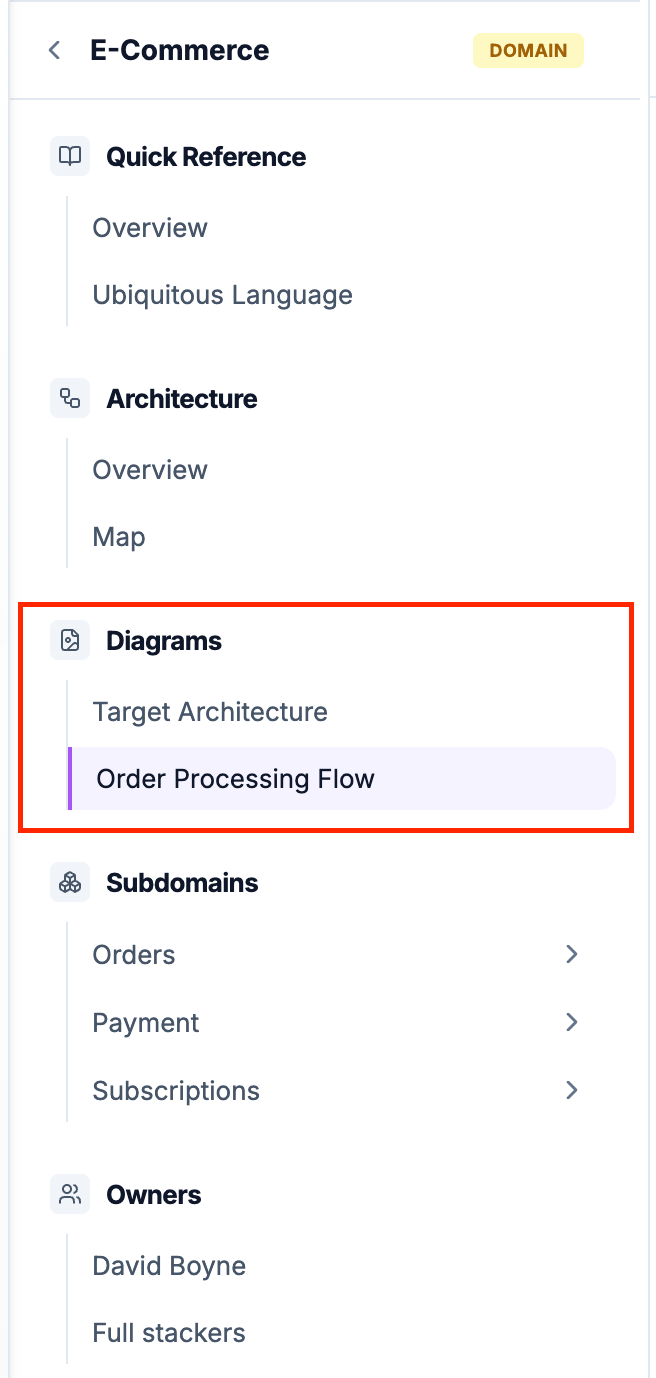
When you reference a diagram from a resource, EventCatalog automatically:
- Adds the diagram to the resource's sidebar under a "Diagrams" section
- Creates a clickable link to the full diagram page
- Shows the diagram name and summary in the sidebar
Referencing diagrams in frontmatter
To reference diagrams from any resource, use the diagrams field in the frontmatter:
diagrams:
  - id: diagram-id
    # version is optional and defaults to latest if not specified
    version: 1.0.0
The version field is optional and defaults to latest if not specified.
Examples
Referencing diagrams from a domain
Domain-level diagrams often show the overall architecture, domain boundaries, or integration patterns.
---
id: E-Commerce
name: E-Commerce Domain
version: 1.0.0
summary: Core business domain for our e-commerce platform
diagrams:
  - id: target-architecture
    version: 1.0.0
  - id: order-flow
    version: 1.0.0
---

## Overview

The E-Commerce domain handles all order processing...
When users view the E-Commerce domain, they'll see a "Diagrams" section in the sidebar with links to both the "Target Architecture" and "Order Flow" diagrams.
Referencing diagrams from a service
Service-level diagrams typically show API flows, service interactions, or internal component architecture.
---
id: OrderService
name: Order Service
version: 2.0.0
summary: Manages order lifecycle and orchestration
diagrams:
  - id: order-api-flow
    version: 2.0.0
  - id: order-state-machine
    version: 1.0.0
---

## Overview

The Order Service is responsible for...
Referencing diagrams from a message
Message-level diagrams can show sequence flows, event propagation, or payload structures.
---
id: OrderCreated
name: Order Created
version: 1.0.0
summary: Published when a new order is created
diagrams:
  - id: order-creation-flow
    version: 1.0.0
---

## Event Details

This event is published when...
Viewing referenced diagrams
When viewing a resource that references diagrams, users will see:
- A "Diagrams" section in the sidebar navigation
- Each diagram listed with its name
- Clicking a diagram navigates to the full diagram page
- The diagram page includes version selection and full content