Create a command
A command documents intent. Use commands when one part of your architecture asks another part to do something that may be accepted, rejected, validated, or handled asynchronously (e.g a POST request)
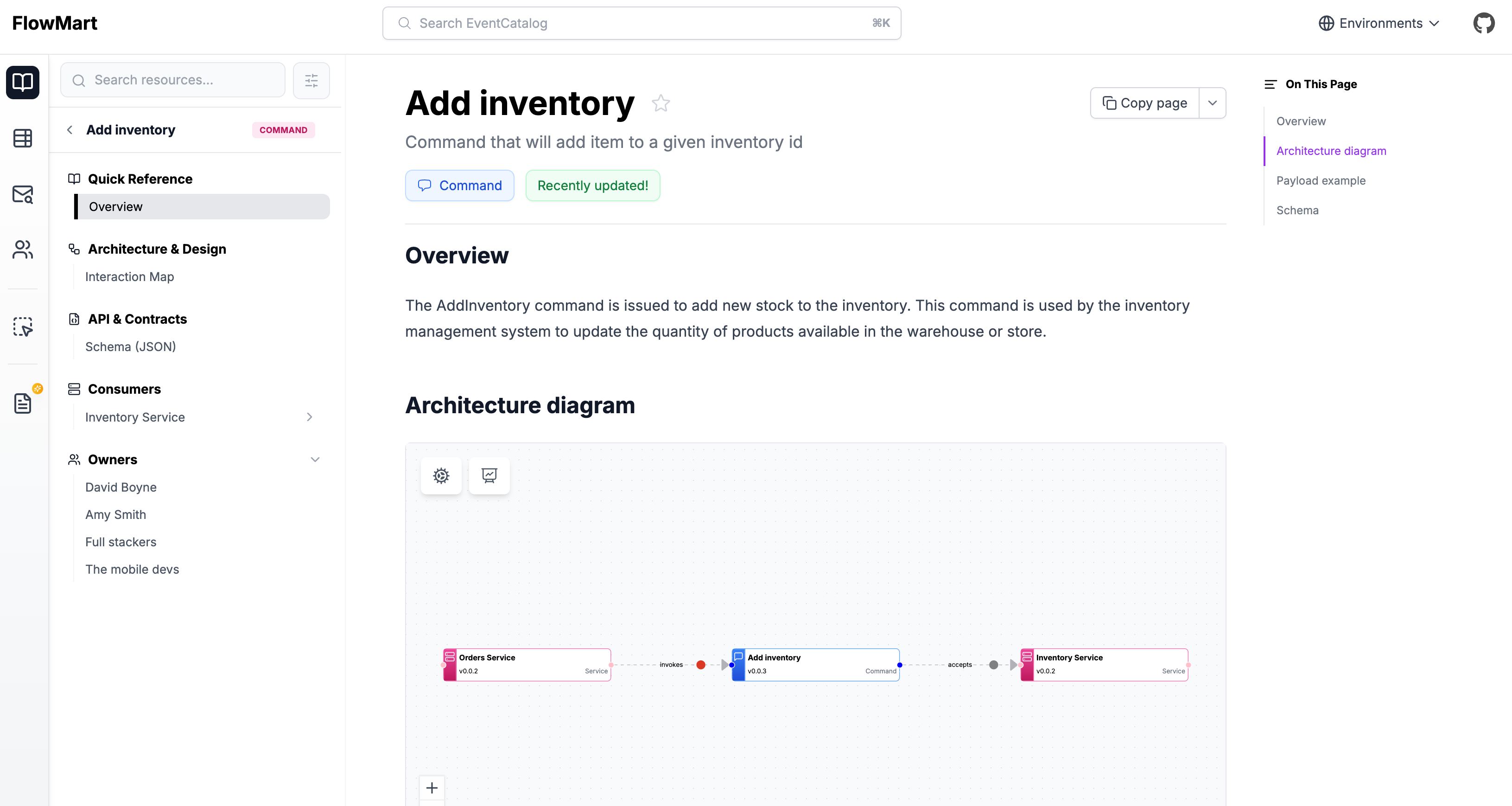
Adding a new command
Automatic Creation
Copy this prompt and paste it into your coding agent. Your agent can help you choose where the command should live, create the right folder structure, and add the first version of the command documentation.
Manual Creation
Commands live in a /commands folder. This folder can be placed:
- At the root of your catalog
- Inside a specific service folder
The contents are split into two sections, frontmatter and the markdown content.
Here is an example of what a command markdown file may look like.
---
# id of your command, used for slugs and references in EventCatalog.
id: UpdateInventory

# Display name of the command, rendered in EventCatalog
name: Update Inventory

# Version of the command
version: 0.0.3

# Short summary of your command
summary: |
  Command with the intent to update the inventory

# Optional owners, references teams or users
owners:
    - dboyne

# Optional badges, rendered to UI by EventCatalog
badges:
    - content: New service
      backgroundColor: blue
      textColor: blue
---

## Overview

The `Update Inventory` command represents intent to update the inventory of a given item over HTTP.

<NodeGraph />
Once this file is added, the command will automatically appear across EventCatalog.
Assign producers and consumer to your command
To add services that invoke or accept your command you can read the guide on adding messages to services.
You can also assign your command to one or more channels (e.g HTTP, GraphQL, etc).
Document an HTTP operation
If your command maps to an HTTP endpoint, use the operation field to document the method, path, and expected status codes.
---
id: UpdateInventory
# ...
operation:
  method: PUT
  path: /inventory/{id}
  statusCodes:
    - "200"
    - "400"
    - "404"
---
When defined, the visualiser shows an HTTP method badge, the API path, and colored status code pills on the command node. See the messages reference for all available options.
Adding schemas to your command
You can add any schema format to your command, you can read the guide on adding schemas to messages.