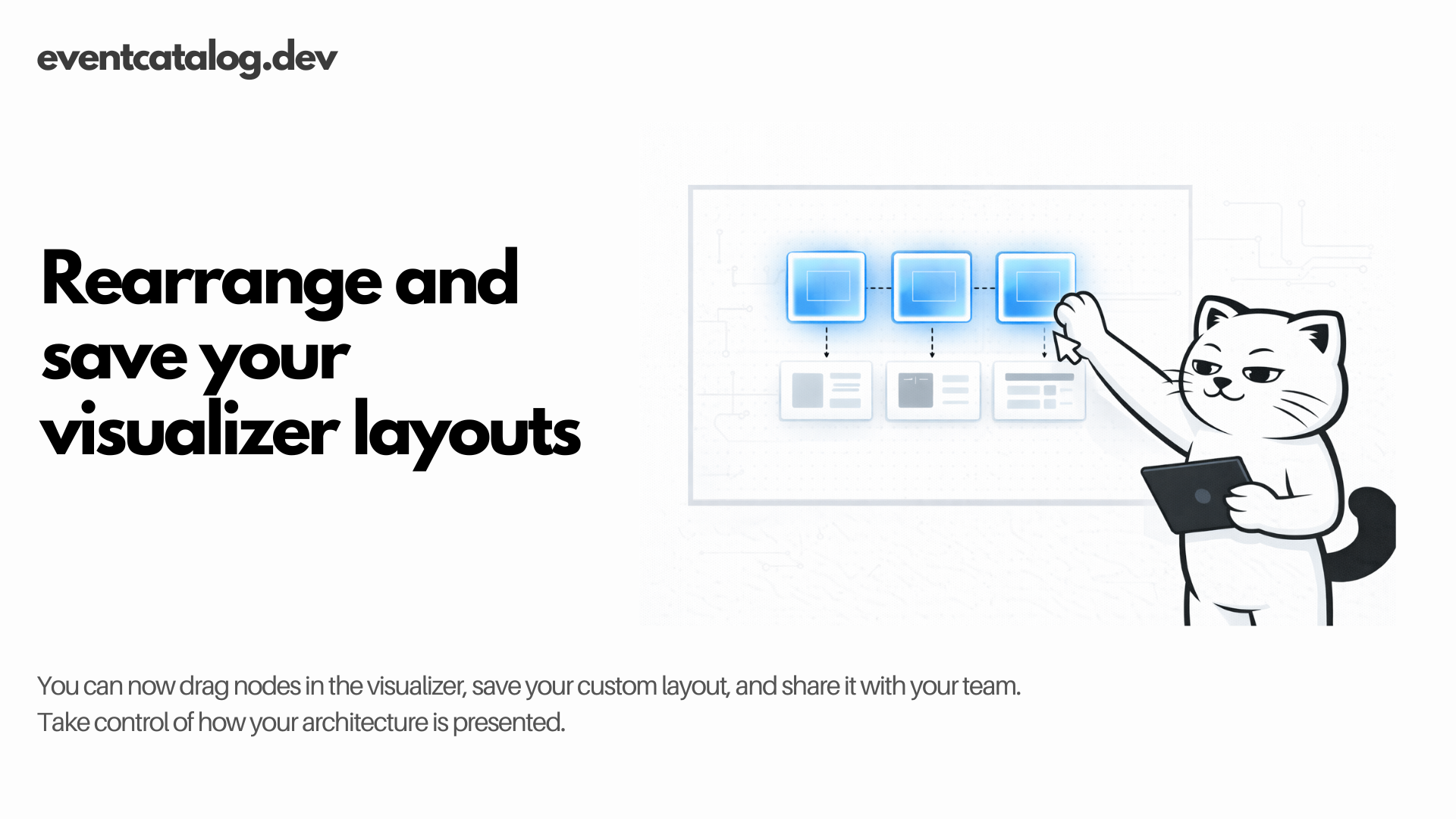
Take control of how your architecture diagrams look and share custom layouts with your team
I'm excited to share a feature that gives you more control over your documentation. You can now rearrange nodes in the visualizer and save those layouts for your team.
EventCatalog automatically arranges your nodes as you add resources to your documentation. But now you can drag nodes around, save them, and persist your custom layouts for everyone.
Why this matters
When you're documenting complex architectures, presentation matters. The way information is laid out can make the difference between clarity and confusion.
EventCatalog automatically arranges your nodes when you add events, services, domains, and other resources. This works great for getting started. But teams often need specific arrangements that make sense for their context.
Now you have control. Drag nodes to arrange them how you want. Save the layout. Your entire team sees the same arrangement when they view the visualizer.
The problem
You have a complex domain with 15 services and 30 events. The auto-layout puts nodes in positions that don't match how your team thinks about the architecture.
You spend time rearranging nodes into a layout that makes sense. Then you navigate to another page or restart your dev server. The layout resets to the default auto-arrangement.
You need to keep doing this every time you view the visualizer. Your team members all see different layouts because everyone arranges things differently.
What you can do now
Rearrange nodes and save the layout. When you drag nodes in the visualizer during development, you can save those positions. EventCatalog stores them and uses your custom layout everywhere that resource appears.
Share layouts with your team. Layouts are saved to _data/visualizer-layouts/ in your catalog. Commit them to git. Everyone on your team sees the same arrangement.
Keep layouts when your architecture changes. If you add new events or services, EventCatalog auto-positions the new nodes while keeping your saved positions for existing ones.
This works for all visualizer types: services, domains, flows, entity maps, and designs.
How to save a layout
You need to run EventCatalog in dev mode to save layouts. This is a development feature, not something your users interact with in production.
Step 1: Run in dev mode
npm run dev
Step 2: Open any visualizer page
Navigate to a service, domain, flow, or any page with a visualizer.
Step 3: Drag nodes to arrange them
Click and drag nodes to position them how you want. Arrange your architecture in a way that makes sense for your team.
Step 4: Save the layout
Click the settings menu (three dots) in the top right of the visualizer. Go to Layout → Save Layout.
EventCatalog saves the positions to _data/visualizer-layouts/ in your catalog directory. The file structure matches your resources:
_data/visualizer-layouts/
  services/
    OrderService/
      1.0.0.json
  domains/
    Orders/
      2.0.0.json
Step 5: Commit to git
Add the layout files to git and commit them. Your team gets the same layout when they view the visualizer.
git add _data/visualizer-layouts/
git commit -m "Save visualizer layout for OrderService"
What happens next
Every page showing that resource now uses your saved layout. If you embed the OrderService visualizer in multiple places, they all use the same arrangement.
If you add new events or services later, EventCatalog positions them automatically while keeping your saved positions for existing nodes. You don't need to redo the entire layout when your architecture evolves.
If you want to reset to auto-layout, use the Layout menu and click Reset Layout.
Getting started
Update to EventCatalog v3.11.0 or later:
npm install @eventcatalog/core@latest
Run your catalog in dev mode:
npm run dev
Open any visualizer, drag nodes to arrange them, and save the layout. That's it.
Summary
You can now rearrange visualizer nodes, save custom layouts, and share them with your team. This gives you more control and flexibility over how your architecture is presented.
For more details, see the visualizer documentation.
Have questions? Join us on Discord.
Found a bug or want to contribute? Check out our GitHub repository.